

If you’re writing a book, there are many strategies you can use to get from that first idea to the final draft of your manuscript.
Some writers have their own unique process, while others benefit from a little guidance. Book writing software can keep you on track with your goals and make the book writing journey less intimidating.
In this post, we’ll review one of those software options, LivingWriter, and help you decide whether it’s the right tool for you.
What Is LivingWriter?
LivingWriter is a book writing software that guides you through the process of writing a book (fiction or nonfiction), breaking it down into steps and allowing you to plan all the elements of your story so they’re right there when you start writing your first draft.
Its minimalist word processor is reminiscent of Google Docs, while its other guiding features are similar to other writing software, such as Novel Factory.
With 14 ready-to-use templates (and the ability to create your own), you’ll have a clear framework for planning, organizing, and writing your book in an efficient way.
Who Is LivingWriter For?
LivingWriter is for writers of both fiction and nonfiction. While it can be a valuable resource for all experience levels, it’s clearly geared more toward new and aspiring authors.
The software takes the long and complicated process of writing a book and breaks it down into a series of steps and different sections, which helps make the project less intimidating and overwhelming.
Features
Let’s take a look at some of LivingWriter’s top features that will help you complete your book.
Templates
LivingWriter comes with 14 pre-made templates that you can use to start writing your story or nonfiction book.

There are templates for:
- Story Circle
- Hero’s Journey
- 27 Chapter Method
- Seven Point Story
- Three Act Structure
- Memoir
- Biography
- Self Help
- Book Proposal
- Romancing the Beat
- PhD Thesis
- Simple Romance
- Save the Cat
- 25 Plot Dot
To get started, you simply have to select a template or choose a blank one, name your project, and voilà!
You’ll be taken to the main manuscript editor, where you’ll see your outline on the left side panel. (The contents of the outline will vary based on the template you chose.)
Outlines
Once in the editor, you’ll have your outline to guide you, but you’ll also get explanations for each step.
For example, I selected the Seven Point Story structure, and you can see in the screenshot below how the outline remains to the left, and an explanatory description remains to the right. (Note that both of these can be minimized for a more focus writing experience).
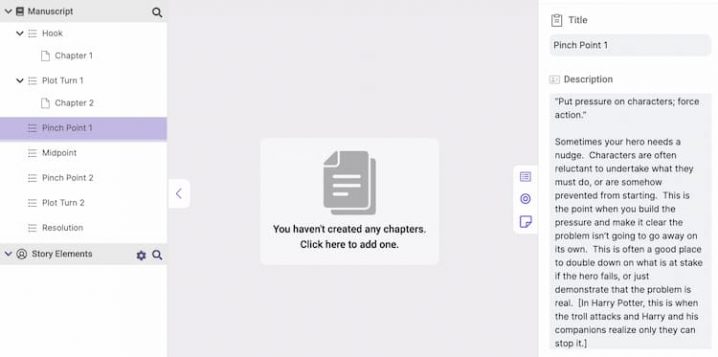
When I click on “Manuscript,” I’m able to view my story outline as a series of note cards, broken down by key points (such as hook, pinch point, plot turn, etc.).

This is one feature that’s very similar to Novel Factory. I’ve tried both, and in each software I like having these cards and the outlines to keep me focused on what needs to happen next for my story to move forward. It’s really helpful to have these already planned out before you start to actually write your fist draft.
You can also easily drag and drop different chapters and elements from the story board section to rearrange them.

Story Elements
Like many other novel writing software, LivingWriter makes it easy to create well-developed characters, settings, important objects, and more.
By clicking on “New” and then “Story Element,” you can choose to add a character, object, setting, or “other.”

These elements act as a sort of glossary with a running list of your characters and settings with brief descriptions and other important info. The story elements will link inside your manuscript, allowing you to access them quickly while writing.
As far as character development, LivingWriter’s tools definitely aren’t the most detailed I’ve seen. You can provide the character’s name, a description, their nicknames, relationships, and an image. You can add additional sections with any information you’d like, but that’s about it as far as pre-designated fields.
When it comes to writing fiction, I prefer Novel Factory’s detailed character profiles that feature hundreds of questions you can answer, allowing you to really flesh out your characters and then write about them all in one convenient place.
However, more experienced writers may not need all those questions, and of course you can always work on character development outside of this software.
The setting element is designed almost identically—you can add a name, description, image, and additional sections.
Goal Tracking
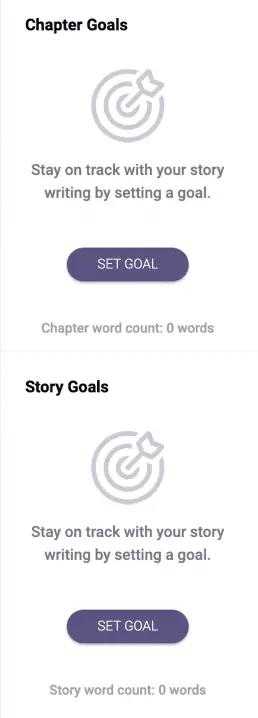
LivingWriter allows you to set and track a variety of writing goals, including general goals for your entire book, individual chapter goals, and special projects such as NaNoWriMo.
Customer Support
As far as support features, LivingWriter has a help center where you can search your specific issue or browse a list of FAQs to find a solution to your trouble. When you click on LivingWriter Help, you’ll also find the site’s blog and other helpful resources.
The help center includes several video tutorials that explain how to use the app’s features, from adding chapters and elements to importing and exporting.
There’s currently no live chat feature, but you can email customer support through their contact page.
Security and Cloud Settings
Everything you create on Living Writer will be encrypted and stored in Amazon Cloud Services.
One thing you won’t find on the streamlined editor screen is a “save” button. That’s because the software constantly auto-saves your work. You’ll also have access to your revision history if you need to return to an older version.
Platform Support
LivingWriter supports Windows, Mac, Android, and iOS, or you can also work directly from the web app.
You can export your work to a variety of files such as Docx, and you can import existing work too. Similar to Google Docs, you can also share links to your work for others to review.
Pros
- Templates for fiction and nonfiction: Unlike many other writing software that mostly cater to either fiction or nonfiction, LivingWriter accommodates both with customized templates. Although most of its features are clearly aimed at fiction writers (character profiles, setting elements, etc.), the software can definitely help nonfiction authors plan and organize their books.
- Distraction-free writing: LivingWriter’s streamlined editor allows you to minimize all side panels and features so you can focus on writing, but of course you can pull up your notes and outlines as needed. The simplified interface without a bunch of bells and whistles is actually one of the software’s main pulls.
- Helpful guides: The video tutorials are very helpful when it comes to getting the hang of LivingWriter, but you also get a lot of help through the actual writing process, too. Even if you’re totally unfamiliar with the different story structures, the outlines and story boards do a great job telling you what needs to happen at each point in your story so you can pace it optimally.
- Convenient Auto-Saves: It’s very reassuring to know that your work is constantly being saved automatically (as long as you’re connected to the internet). Plus, you can easily revert changes by accessing your revision history.
Cons
- Bare-bones character features: This isn’t necessarily a con for all writers, but when it comes to character development, LivingWriter offers less guidance than other software like NovelFactory. You’ll mostly be on your own if you want to create a more detailed character profile (aside from basics like name, description, relationships, etc.). But again, many writers might have their own process for that anyway or may not require as much guidance for brainstorming.
- Visual planning could be improved: One thing that I didn’t find as smooth or intuitive as some other software was the visual plotting aspect. You can create profiles for your characters and settings, plot out your scenes on notecards, and create chapters and subchapters, but it’s not really easy to visually see how they all tie together. The good news is that LivingWriter is currently working on an update to add a “Story Element Relationship Tree.” You can see all their planned updates here.
Pricing
LivingWriter offers a free trial and a paid subscription plan that includes access to all of its features.
14-Day Free Trial
I really love that LivingWriter allows you to test out the software with a 14-day free trial, without having to provide credit card info (a rarity!).
So if you’re curious and want to see if the software is worth the subscription fee, I highly recommend taking advantage of the free trial.
Monthly Plan: $9.99/month
LivingWriter doesn’t offer different subscription tiers. If you subscribe, you’ll get access to all the software’s available features.
The only variable might be how much you pay, depending on how often you pay.
You can choose from the following subscription options:
- Monthly ($9.99/month): Your subscription will renew each month unless canceled, and you’ll be charged $9.99 once per month.
- Yearly ($8/month, $96 paid annually): You’ll pay an up-front fee of $96 for a year of access, which adds up to a slight monthly discount of $8/month vs. $9.99/month.
- Lifetime (one-time payment of $399): You’ll pay a one-time fee of $399 for lifetime access to LivingWriter.
Can LivingWriter Be Used Offline?
As of May 2022, LivingWriter cannot be used offline. But, the company reports they are 85% done with an update that would allow you to work offline on your desktop and backup your work to your PC and cloud simultaneously.
Is LivingWriter Worth It?
If you’re looking for a streamlined platform where you can store all your notes, plot an outline, and write your book in one place, LivingWriter is definitely worth trying out—and with a free 14-day trial, you can do exactly that without even providing a credit card.
You can also test out other great book writing software, such as NovelFactory (for fiction) or Scrivener.
Did you find this post helpful? Let us know in the comments below!
If you enjoyed this post, then you might also like:
- Novel Factory Review: Can This Software Help You Finish Your Novel?
- Plot Factory Review: What It Is and How It Works
- The Best Novel Writing Software: Tools Every Fiction Writer Should Use
- Evernote Review: Is This Note-Taking Tool Still Worth It in 2022?

As a blog writer for TCK Publishing, Kaelyn loves crafting fun and helpful content for writers, readers, and creative minds alike. She has a degree in International Affairs with a minor in Italian Studies, but her true passion has always been writing. Working remotely allows her to do even more of the things she loves, like traveling, cooking, and spending time with her family.
